Build an AI Lead Qualification Workflow in n8n: Step-by-Step Blueprint
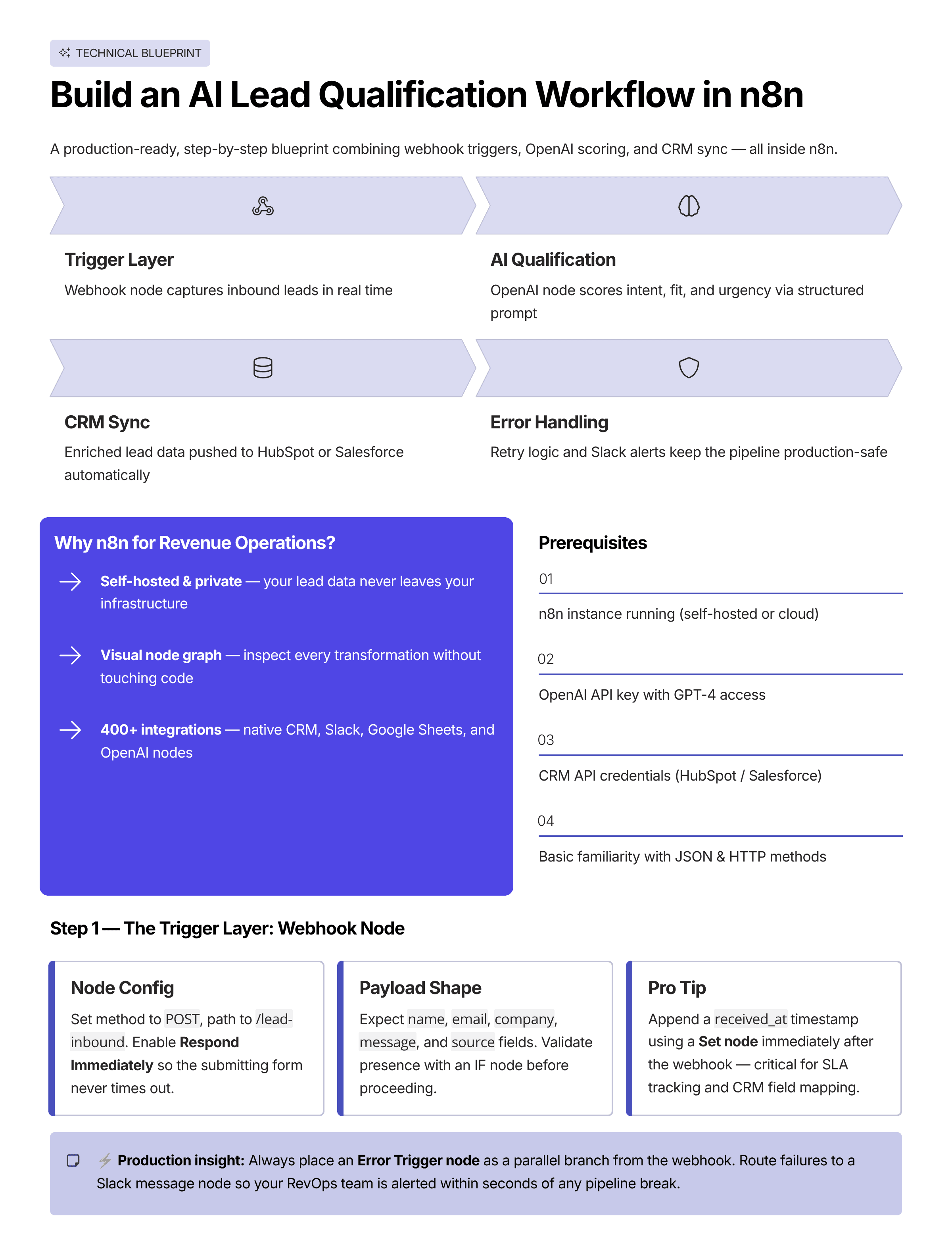
Why n8n for Revenue Operations
n8n sits in a unique position: it's powerful enough to replace Zapier for complex multi-step workflows, supports self-hosting for data compliance, has native AI nodes for OpenAI/Anthropic, and has a growing library of 400+ integrations. For RevOps teams building custom automation, it's the dominant open-source choice in 2025.
This walkthrough covers the exact workflow architecture used to qualify and route inbound leads from any source into your CRM with AI scoring.
Prerequisites
- n8n instance (self-hosted or n8n.cloud)
- OpenAI API key (GPT-4o recommended)
- HubSpot or Salesforce API credentials
- Twilio (optional, for SMS notifications)
- Slack webhook URL
Step 1: The Trigger Layer
Add a Webhook node as your entry point. Set the HTTP method to POST and copy the production URL for your form integration. If you're using a form builder like Typeform, use the native Typeform trigger node instead — it handles authentication and retry logic for you.
Pro tip: Always add a Respond to Webhook node immediately after to return a 200 OK. This prevents form submission timeouts while your workflow processes asynchronously.
Step 2: Data Enrichment via Apollo
After the webhook fires, send the lead's email to Apollo.io's Person Search API using an HTTP Request node:
POST https://api.apollo.io/v1/people/match
Headers: { "X-Api-Key": "{{$credentials.apolloKey}}" }
Body: { "email": "{{$json.email}}", "reveal_personal_emails": false }
Extract: person.title, person.organization.name, person.organization.estimated_num_employees, person.organization.industry.
Step 3: AI Qualification with OpenAI
Add an OpenAI node (Chat Model). Use this prompt structure:
You are a B2B lead qualification specialist. Score this lead 0-100 based on ICP fit.

ICP: [YOUR TARGET CUSTOMER PROFILE]
Lead data:
- Name: {{$json.name}}
- Company: {{$json.apollo.organization_name}}
- Industry: {{$json.apollo.industry}}
- Company size: {{$json.apollo.employees}}
- Pain point stated: {{$json.message}}

Return JSON only: { "score": number, "reason": string, "priority": "high|medium|low" }
Parse the JSON response using an Edit Fields node and branch using an IF node: score > 75 = high-priority path, score < 75 = nurture path.
Step 4: CRM Sync with Deduplication
Before creating a new contact, always run a Find Contact operation. This prevents duplicate records. Use n8n's Merge node to combine the Apollo enrichment data with the original form submission before writing to HubSpot.
Step 5: Notifications
For high-priority leads: send a Slack message to your #new-leads channel with a formatted card including name, company, score, and a direct HubSpot link. Send the personalised SMS via Twilio within the same branch.
Error Handling — Non-Negotiable
Add an Error Trigger node at the top level of your workflow. Connect it to a Slack notification and a Google Sheets log. If Apollo is down, the workflow should continue with the data it has — not fail entirely. Add a Fallback IF node that checks whether Apollo returned data before using it.
Deployment
Export your workflow as JSON and commit it to your Git repository. Set up n8n's built-in execution logging and pin a test execution for regression testing when you make changes.